Environments
Environments are a technical representation of your system. Every software company most likely has a production environment, which your customers use. You could call this environment "Live". We call it "prod".
But you may also have other environments to represent running instances of your software for testing purposes. You might call this "test" or "QA". At dev-team-tools, we call this one "stage".
At dev-team-tools, we know certain tools are useful to be configured differently within different environments. For example, Feature Switches. You might want to enable a switch on the "stage" environment, but disabled on "prod".
Below we outline how to create and configure environments within dev-team-tools, to empower your team to tests and build software.
Creating
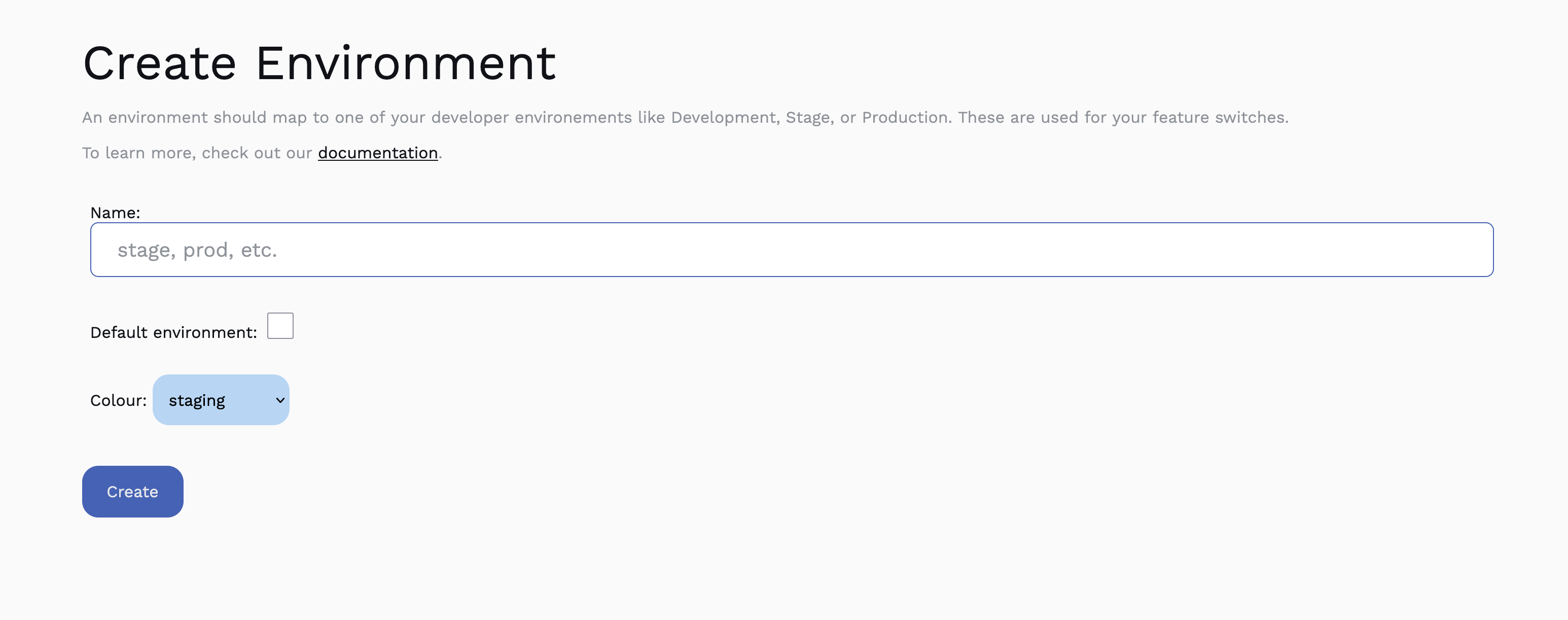
Before you can use some products in the system, you will need to create an environment. It's recommended that for each of your technical environments you should create a a corrisponding one in dev-team-tools.
These must have a unique name within your company (so you can't have two "stage"'s for example). These environment names will also be used when configuring the SDK, and it's recommended to make them human readable.
Setting a default
On top of this, you can define a default environment, which is the one you'll load into automatically when navigating to a product that requires environments.
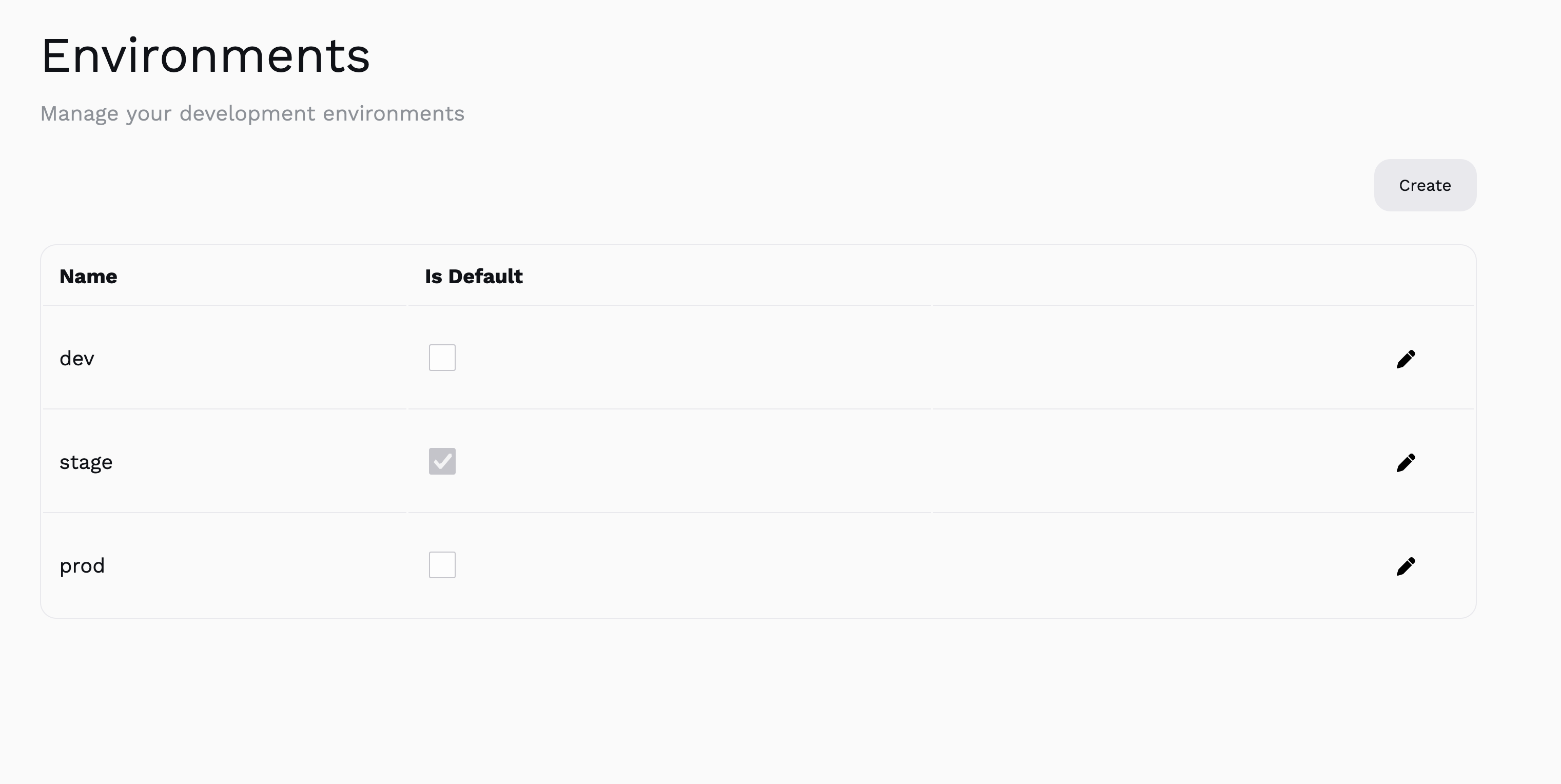
For example if you have defined a "stage" environment and set it to default, this will be the environment that loads when you initially view your feature switches.
Colours
Setting a colour has no real effect on the system, except making it easier to tell which environment you're currently acting within. It's recomended you pick different colours for each environment.
Managing
You can manage your environments at any time.
Edit
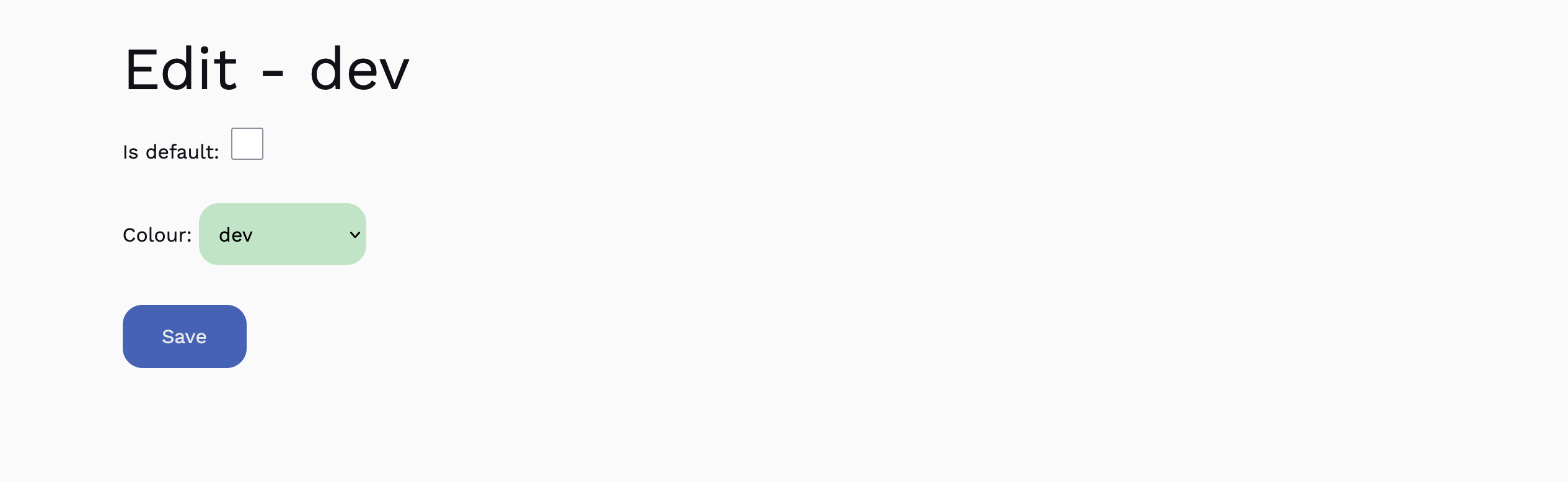 You can:
- edit the colour
- set if it's the default environment
Deleting an evironment
At time of writing, it's not possible to remove an environment. Please if you'd like to delete one.