Getting Started
You're either going to be joining dev-team-tools in two different ways:
- As someone creating the initial company account at dev-team-tools
- As someone joining a company that's already been set up
So please jump to the appropriate docs.
Signing up
All users need to sign up before either creating or joining a company. Head to the homepage, and hit the Login button. From there, you can create your account.
Inital sign up and set up
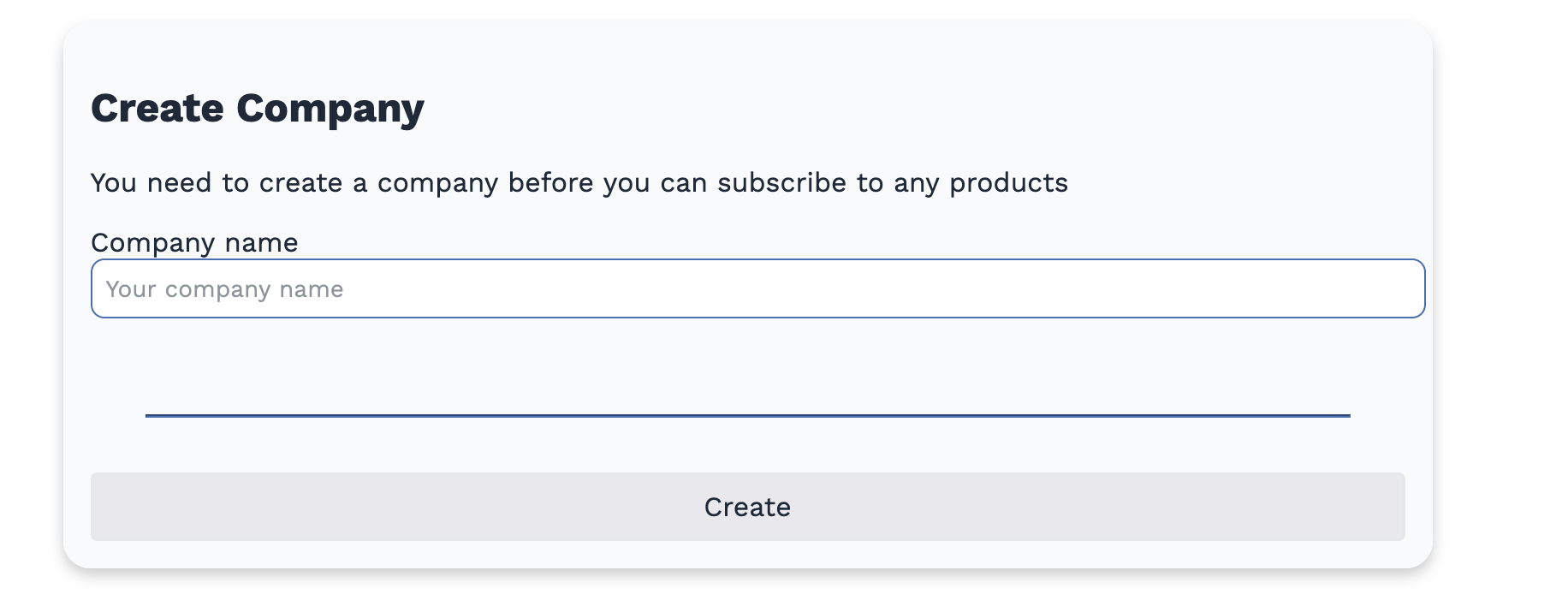
If you're the first person in your company to set up an account at dev-team-tools, you'll be asked to set up a company. Your company cannot be changed once it's been created, so make sure you're happy with the name!
Inviting users to your company
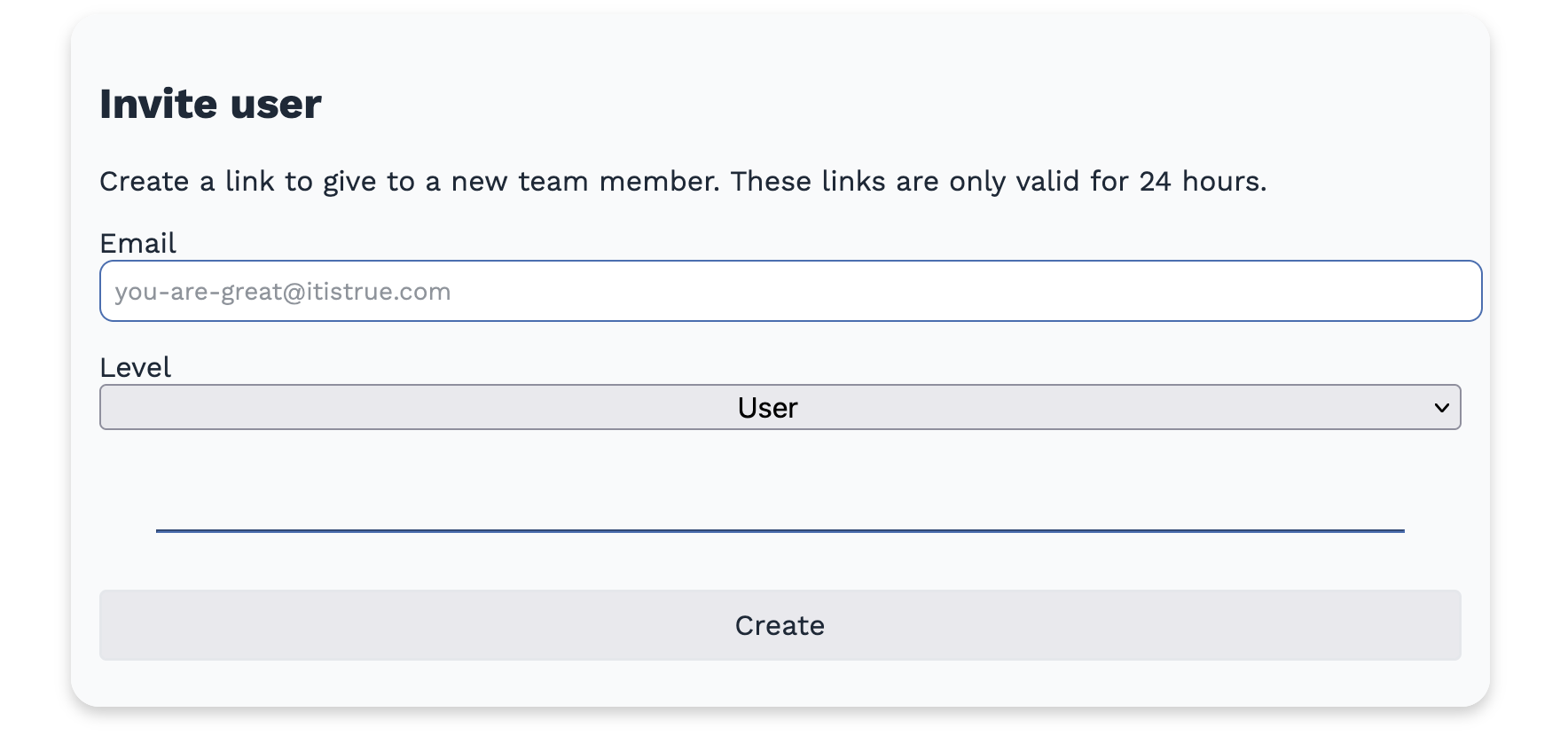
Once you've created a company, you can invite other users to the company. Head to the Settings and scroll down to Invite user. Add their email address, and click invite. Copy the generated URL, and send that to them. Please be aware that the email provided at this step must match the email they give when signing up. The user must also not already be attached to a company.
Example steps:
- Login to dev-team-tools
- Head to the settings page
- Scroll down to the
Invite Usersection - Input the email address of the new user
- Set the
levelof the user
- Admin, if you'd like them to have elevated permissions to perform actions within the system
- User, as someone who can use the system and make smaller changes e.g. creating / updating feature switches
- Copy the link and give it to the person you'd like to add
Joining a company
Currently, you can only join a company via a generated link. Someone within the company will need to generate a link (see above), and share it with you. Following the link will add you to their company. Plewase be aware that you can only be attached to one company at a time.